Apple Watch Heart Rate Zones: How They Work & When to Edit Them
Quick answer: Apple Watch automatically creates five heart rate zones from your Health data and shows them during cardio-focused workouts. Manual mode lets you edit the lower and upper limits for Zones 2–4. Automatic zones are useful for everyday training; manual zones can help if you have a reliable measured maximum heart rate, already train with established zones, or want transparent control over the boundaries.

Apple Watch shows five heart rate zones during cardio-focused workouts. Apple says the zones are calculated and personalized automatically from your Health data, and you can switch to Manual mode if you want to set the boundaries yourself. This guide explains how to view the zones, how to edit them, what the accuracy research shows, and when manual zones may be useful. Heart rate zones are a practical training guide, not a diagnostic tool.
TL;DR:
- Apple Watch needs your birth date in the Health app to calculate zones; turn the Digital Crown during a cardio-focused workout to see the Heart Rate Zone view.
- Automatic zones are personalized from your Health data. Manual mode lets you enter the lower and upper limits for Zones 2–4.
- Generic charts such as 50–60–70–80–90% of max heart rate are a common training convention, not necessarily your Apple Watch's automatic boundaries.
- A 2026 meta-analysis found very small average heart-rate bias for Apple Watch, but an individual reading can still differ meaningfully from a reference device.
Table of Contents
- How to view your heart rate zones during and after a workout
- Apple Watch zones vs the common five-zone convention
- How Apple calculates your zones and when to switch to manual
- Editing zones and setting heart rate alerts
- What the research says about Apple Watch heart rate accuracy
- Using SnapHRZones alongside your Apple Watch
- FAQ
- Sources
How to view your heart rate zones during and after a workout
Apple Watch shows your current zone during cardio-focused workouts, and you can review the session afterward in the Fitness app on iPhone.
- Open the Workout app on your Apple Watch and start a cardio-focused workout, such as an outdoor run or an outdoor cycle.
- During the workout, turn the Digital Crown to the Heart Rate Zone workout view. It shows your current zone, your heart rate, your time in the current zone and your average heart rate.
- After the workout, open the Fitness app on iPhone, select the workout, then tap Show More next to Heart Rate to see time spent in each zone.
For the zones to be calculated, your date of birth must be entered in the Health app, according to Apple's Heart Rate Zones support page.
Practical suggestion: On long steady sessions, an occasional glance at the zone view is usually enough. Many people find that pacing by breathing and feel, with the Watch as a check, keeps attention on the workout.
Apple Watch zones vs the common five-zone convention
Apple Watch automatic zones
Apple describes its heart rate zones as percentages of maximum heart rate, shown in five segments, and calculated and personalized automatically using your Health data. Apple's support page does not list fixed percentage boundaries for each zone, so the ranges on your own Watch are the ones to check.
The common five-zone convention
Many training systems use approximate percentage bands of maximum heart rate. This is a common five-zone convention — not necessarily your Apple Watch automatic boundaries:
- Zone 1 (about 50–60%): easier effort, often used for recovery and warmups.
- Zone 2 (about 60–70%): aerobic, endurance-type effort where conversation is still comfortable.
- Zone 3 (about 70–80%): moderate effort; speech gets shorter.
- Zone 4 (about 80–90%): hard effort; talking becomes difficult.
- Zone 5 (about 90% and above): very hard effort that can only be held for a limited time.
Training models differ in how they draw and use these bands, so treat the labels as general training concepts. For more on each zone, see heart rate zones explained, the Zone 2 heart rate guide, Zone 3 training and Zone 5 training.
In one common five-zone model, Zone 2 is often placed around 60–70% of maximum heart rate, but zone systems and individual boundaries differ. The talk test — whether you can still speak in full sentences — is a simple, approximate way to check an easy aerobic effort without relying only on the screen.
It's also worth separating two ideas that often get mixed together: fuel mix and total energy burned. At lower intensities a higher proportion of energy comes from fat, while higher intensities shift the mix toward carbohydrate, as the Cleveland Clinic explains. That doesn't mean easy sessions burn more total calories than harder sessions of the same length. For fat loss, total activity and consistency over time matter more than any single zone.
How Apple calculates your zones and when to switch to manual
Apple says its automatic zones are calculated and personalized from your Health data. Apple does not spell out the complete formula on its current support page; third-party reporting on the feature, such as 9to5Mac's walkthrough, has described it as using heart rate reserve (the Karvonen approach), which combines maximum and resting heart rate. That same third-party reporting describes the zones as being updated periodically; Apple's support page does not state a refresh schedule.
Manual mode can be useful if you:
- already train with established zones from a coach or another training platform,
- have a reliable measured maximum heart rate from appropriate testing, or
- simply want transparent control over the boundaries.
Maximal testing is strenuous. If you have a heart condition, symptoms or are new to vigorous exercise, talk to a healthcare professional before attempting it.
Editing zones and setting heart rate alerts
In Manual mode, Apple lets you enter lower and upper limits for Zones 2, 3 and 4. Zone 1 and Zone 5 follow from those boundaries.
- On Apple Watch: Settings → Workout → Heart Rate Zones → Manual.
- On iPhone: open the Watch app, then My Watch → Workout → Heart Rate Zones → Manual.
- Enter the lower and upper limits for Zones 2–4.
Heart rate alerts are not automatic for every workout. Apple supports heart rate alerts as part of workout settings such as Custom Workouts, where you can add an alert to segments like the warmup. Once set, the Watch notifies you during that part of the workout if your heart rate moves outside the chosen range.
Practical suggestion: If readings or alerts seem erratic, check that the Watch fits snugly on your wrist and that your Health details, such as date of birth, are current.
What the research says about Apple Watch heart rate accuracy
The strongest current evidence is a 2026 living systematic review and meta-analysis in npj Digital Medicine. It included 82 studies covering 14 Apple Watch metrics, 38 of which validated heart rate.
- Pooled mean heart-rate bias was very small (about −0.27 bpm).
- The pooled limits of agreement were roughly −7.2 to +6.6 bpm, which means individual readings can differ meaningfully from a reference device even when the average is close.
- During exercise, average bias remained small, but individual variability was present.
- Accuracy varied with measurement conditions, movement and individual physiology; irregular movement patterns can reduce agreement.
- In an exploratory subgroup analysis, newer optical-sensor generations showed narrower limits of agreement. That is an encouraging signal, not proof that every newer model is more accurate in every situation.
Apple Watch heart rate is generally useful for everyday exercise monitoring, but an individual reading can still differ meaningfully from a reference device. A well-fitted ECG-based chest strap can be useful when you want more consistent heart-rate tracking during intervals or rapidly changing effort. Apple's own heart rate and activity documentation describes how the Watch measures heart rate during workouts.
Using SnapHRZones alongside your Apple Watch
SnapHRZones can give you a transparent second calculation to compare with your Apple Watch zones. If you prefer manual zones, you can use the calculator as a reference and enter the boundaries into Apple Watch.
- See exactly how each zone is calculated and compare common maximum heart rate formulas.
- Optionally add your resting heart rate for a Karvonen (heart rate reserve) calculation — see how to calculate heart rate zones.
- If you switch to Manual mode, use the calculated Zone 2–4 limits as a reference when entering them on your Watch.
- Check the result on an easy, familiar session and compare it with how the effort feels.
Both approaches are estimates. If your perceived effort regularly doesn't match the zone shown, a few mornings of resting heart rate readings and an honest look at how sessions feel can help — our guide to HRV vs heart rate covers building a baseline.
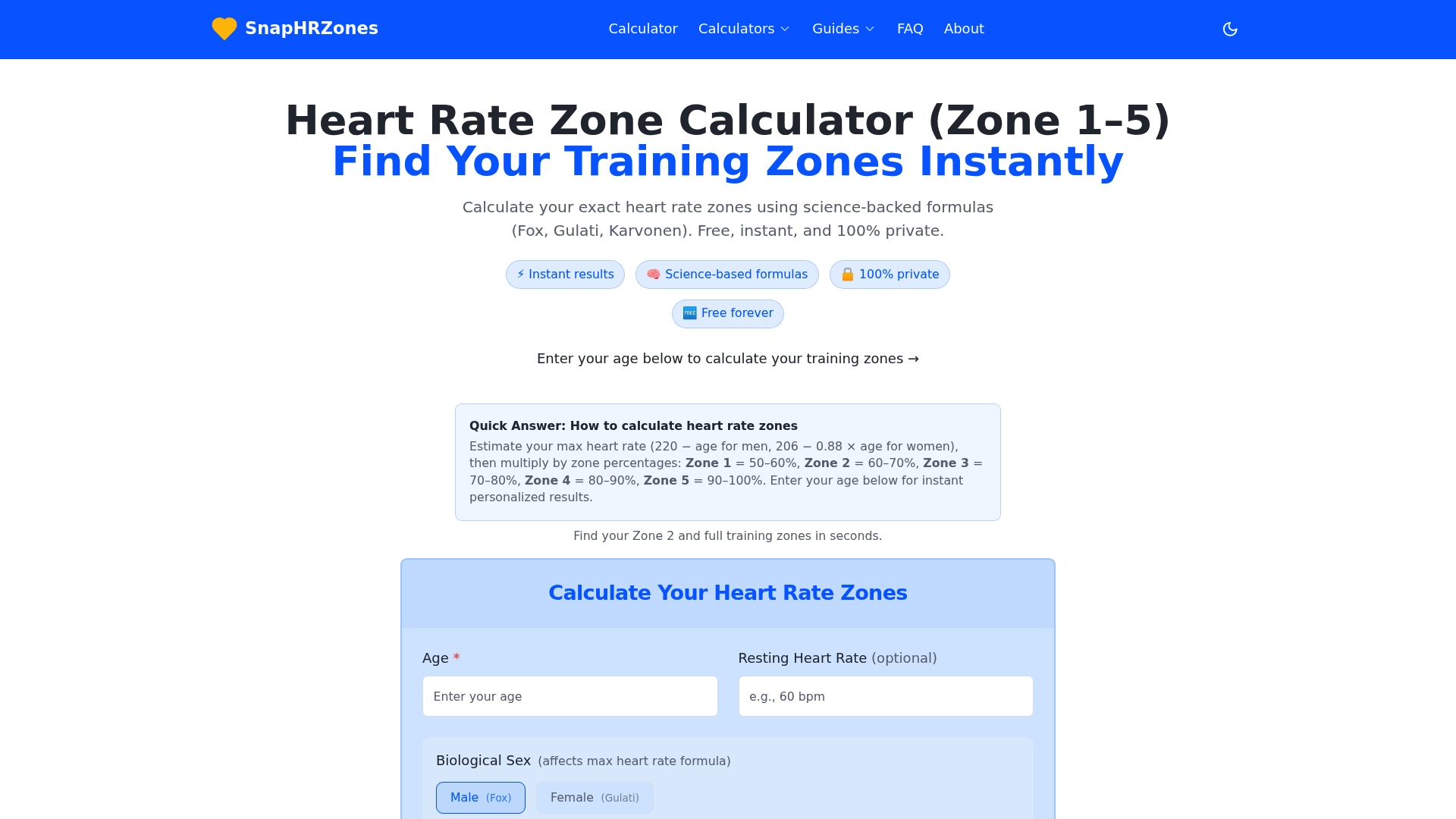
Try the heart rate zone calculator to see your five zones and the calculation behind them.
FAQ
How does Apple Watch calculate heart rate zones?
Apple says the zones are automatically calculated and personalized using your Health data. Its current support documentation does not provide the full calculation formula.
Can I manually change Apple Watch heart rate zones?
Yes. Go to Settings → Workout → Heart Rate Zones on the Watch, or My Watch → Workout → Heart Rate Zones in the Watch app on iPhone, and choose Manual. You can then enter lower and upper limits for Zones 2–4.
Are Apple Watch heart rate zones accurate?
Zone quality depends on two things: the heart-rate measurement and the zone boundaries. 2026 validation evidence shows low average heart-rate bias but meaningful individual variability, and boundaries based on estimated values are approximate for any device or calculator.
Is 140 bpm Zone 2 on Apple Watch?
Not necessarily. Your Apple Watch boundaries are personalized, so check the Zone 2 range shown on your own Watch rather than relying on a universal bpm number.
Should I use automatic or manual zones?
Automatic zones are a sensible default for everyday training. Manual zones can make sense if you already use established zones, have a reliable measured maximum heart rate from appropriate testing, or want to set the boundaries yourself. Neither is universally better.
Sources
- View Heart Rate Zones on Apple Watch (Apple Support)
- Create a Custom Workout on Apple Watch (Apple Support)
- Lambe R, et al. The accuracy of Apple Watch measurements: a living systematic review and meta-analysis. npj Digital Medicine. 2026.
- Heart Rate, Calorimetry and Activity on Apple Watch (Apple, 2024)
- Exercise heart rate zones explained (Cleveland Clinic)
- Heart rate zones on Apple Watch and iPhone (9to5Mac, third-party reporting)
Find your personal heart rate zones
Enter your age to get all five training zones in seconds.
Open the heart rate zone calculator