Garmin Heart Rate Zones: How to Set 5 Zones and Train Zone 2
Quick answer: Garmin watches build five heart rate zones from your user profile. On many models you can base them on %Max HR, %HRR (heart rate reserve) or %LTHR (lactate threshold heart rate), enter your own max and resting heart rate, and edit each zone on the watch or in Garmin Connect. The zones are configurable estimates, not lab-measured thresholds, so Zone 2 can land at different bpm depending on the method you choose.

Garmin watches show your effort as five colored heart rate zones. Those zones are not fixed physiological facts: they come from the numbers in your user profile and from the calculation method your watch is set to use. Change the method or the inputs and the same run can be logged as Zone 2 or Zone 3. This guide explains how Garmin zones are calculated, where you can change them, and how to read a Garmin Zone 2 workout without over-trusting the exact bpm.
TL;DR:
- Garmin sets default zones from your user profile; you can enter your own max heart rate, resting heart rate and, on supported models, lactate threshold heart rate.
- Many Garmin devices let you base zones on BPM, %Max HR, %HRR or %LTHR. Not every model offers every option.
- There is no single correct Zone 2 percentage. Boundaries depend on the zone model and method, and individual thresholds vary widely.
- Wrist sensors are usually fine for steady efforts; a chest strap can help when heart rate changes quickly.
- Check your Zone 2 with the talk test and perceived effort, especially on long or hot sessions where heart rate drifts upward.
Table of Contents
- How Garmin calculates heart rate zones
- %Max HR vs %HRR vs %LTHR
- Worked example: one runner, three methods
- Where to set your zones on a Garmin
- Why two people of the same age get different zones
- Reading a Garmin Zone 2 workout
- Wrist sensor vs chest strap
- Common setup mistakes
- Estimated zones vs physiological testing
- Using SnapHRZones alongside your Garmin
- FAQ
- Sources
How Garmin calculates heart rate zones
According to Garmin's owner's manuals, the watch uses the user profile information from your initial setup to determine default heart rate zones. You can then enter your own maximum heart rate and resting heart rate, and on supported models your lactate threshold heart rate, and choose what the zones are based on. Some models can also record maximum heart rate or lactate threshold automatically during activities, and you can set separate zones for sport profiles such as running and cycling.
Whatever method is active, the watch converts percentages into bpm boundaries, shows your current zone during an activity and records time in each zone. The output can only be as personal as the inputs: if your profile still relies on an age-based maximum heart rate, every zone above it inherits that estimate.
%Max HR vs %HRR vs %LTHR
These are the three percentage-based methods Garmin describes for compatible devices. They answer the same question in different ways, so the same "Zone 2" label can mean different bpm.
| Method | What it uses | Strengths | Limitations |
|---|---|---|---|
| %Max HR | A percentage of maximum heart rate | Simple; needs only one number | Ignores resting heart rate; an age-estimated max can be well off for an individual |
| %HRR (Karvonen) | A percentage of heart rate reserve (max HR minus resting HR), added back to resting HR | Accounts for resting heart rate | Still depends on max HR, which may be estimated; resting HR must be measured consistently |
| %LTHR | A percentage of lactate threshold heart rate | Anchored to a performance-related marker | Requires a threshold estimate from a test or compatible device; not available on every model |
The Karvonen method uses estimated or measured maximum heart rate together with resting heart rate. It is more individually adjusted than a plain %Max HR calculation, but it is still an estimate: it does not measure your lactate or ventilatory thresholds, and it is not automatically the better choice in every context. If you have a reliable lactate threshold heart rate, %LTHR zones can be a useful alternative; our LTHR field-test calculator explains one way to estimate it.
Worked example: one runner, three methods
Assumptions for illustration only: maximum heart rate 180 bpm, resting heart rate 60 bpm, lactate threshold heart rate 165 bpm. The Zone 2 percentages below are example values from common five-zone conventions, not Garmin defaults and not recommendations for you.
| Method | Example Zone 2 range | Calculation | Zone 2 in bpm |
|---|---|---|---|
| %Max HR | 60–70% of max HR | 180 × 0.60 to 180 × 0.70 | 108–126 |
| %HRR | 60–70% of reserve | 60 + (120 × 0.60) to 60 + (120 × 0.70) | 132–144 |
| %LTHR | about 81–89% of LTHR | 165 × 0.81 to 165 × 0.89 | 134–147 |
The same person gets a Zone 2 ceiling anywhere from 126 to 147 bpm depending on the method. None of these is "the" Zone 2; they are different models. Pick one method, keep your inputs accurate, and check the result against how the effort feels.
Where to set your zones on a Garmin
Garmin states that you can adjust zones on the watch or in your Garmin Connect account. Menu names vary by model and software version, so use your own device's manual. Two examples from Garmin's documentation:
- fēnix 9 series: from the watch face, hold the menu button, then Watch Settings > User Profile > Heart Rate & Power Zones > Heart Rate. There you can enter max heart rate, LTHR and a custom resting heart rate, then choose Zones > Based On (BPM, %Max. HR, %HRR or %LTHR).
- Instinct (original): hold MENU, then Settings > User Profile > Heart Rate. This model lists BPM, %Max. HR and %HRR, but not %LTHR.
Check that your max heart rate, resting heart rate and zone method are what you intend before relying on time-in-zone data, and remember that sport-specific zones may need to be set separately.
Why two people of the same age get different zones
Age-based formulas describe averages, and real maximum heart rate varies considerably between people of the same age. Resting heart rate varies too. With %HRR, two 40-year-olds with the same max but resting rates of 50 and 70 bpm get different Zone 2 ranges; with %LTHR, their zones depend on their thresholds, which training status influences. A study comparing Zone 2 boundary methods found substantial individual variability, so fixed percentages placed many participants differently relative to their measured thresholds. That is why a single universal Zone 2 percentage does not exist.
Reading a Garmin Zone 2 workout
A Zone 2 session is meant to feel steady and sustainable. The CDC describes moderate-intensity activity as effort where you can talk but not sing, which is a useful cross-check for an easy aerobic session. Treat the upper zone boundary as a guide rather than a hard physiological limit.
During longer steady efforts, heart rate can rise while pace or power stays the same, a pattern called cardiovascular drift. It is influenced by several factors, including heat, duration, hydration status and fatigue. If your Garmin shows a long run creeping into Zone 3 late in the session, some suggestions:
- Check the talk test and perceived effort before reacting to the number.
- Ease the pace slightly if effort has genuinely risen.
- Accept a small late rise on long or warm sessions instead of chasing the exact bpm.
After the activity, Garmin Connect shows time in each zone. Use it as a sanity check: if a run that felt easy is logged mostly in Zone 3, review your zone method and inputs before concluding that your effort was wrong. For more on structuring the sessions themselves, see our Zone 2 heart rate training guide and, for lower-impact sessions, our Zone 2 walking guide.
Wrist sensor vs chest strap
Garmin watches measure heart rate optically at the wrist and can also pair with chest straps. Optical wrist readings are often close to reference measurements during steady activity, but accuracy varies with fit, skin, movement and how quickly intensity changes. Chest straps that measure the heart's electrical signal are generally considered the more consistent option, although studies also show differences between chest-worn products; one comparison of a chest strap and a vest found the strap closer to the reference during training.

A few bpm of error matters most near zone boundaries and in intervals. Practical suggestions:
- Wear the watch snugly, a little above the wrist bone.
- Let the reading settle during the warm-up before trusting it.
- Consider a chest strap for intervals or when you need consistent readings during rapid effort changes.
If you also track HRV on your Garmin, our guide to HRV vs heart rate explains what each number measures.
Common setup mistakes
- Leaving an age-based max heart rate in place and assuming the zones are personalized.
- Switching methods without noticing that Zone 2 bpm moved, then comparing old and new time-in-zone data.
- Entering a one-off resting heart rate instead of a typical value measured under consistent conditions.
- Forgetting sport-specific zones, so running zones are applied to cycling or vice versa.
- Treating the zone boundary as exact instead of checking it with the talk test and perceived effort.
Estimated zones vs physiological testing
Garmin's zones are configurable training settings. Laboratory testing identifies physiological markers such as ventilatory or lactate thresholds directly. Formula-based zones, including Karvonen, do not measure those markers, so a calculated Zone 2 is a practical starting estimate. If you have reliable test results, use them to set your zone boundaries. Without testing, a consistent method plus effort checks is a reasonable approach.

Zones also map loosely onto session types: easy and long sessions mostly in Zone 1–2, tempo work around Zone 3, and harder intervals in Zone 4–5 (see our Zone 5 guide). These are general patterns, not fixed rules.
Using SnapHRZones alongside your Garmin
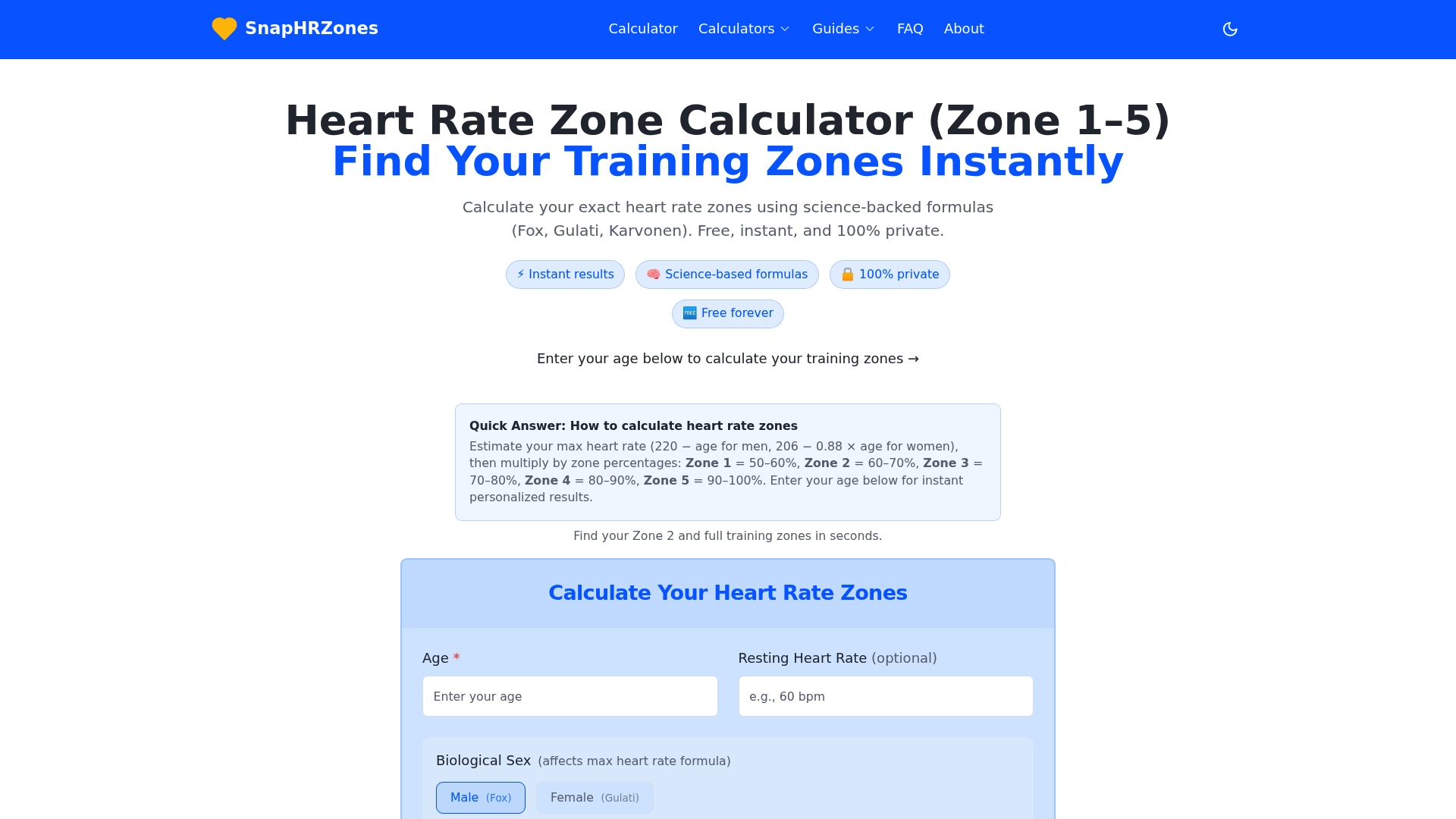
The SnapHRZones heart rate zone calculator gives a transparent second calculation from your age, sex and optional resting heart rate, using common formulas and the Karvonen method. You can compare its bpm ranges with the zones on your Garmin, or use them as a reference if you choose to enter custom boundaries. It provides estimates, not test results. For a step-by-step walkthrough, see how to calculate heart rate zones; Apple users can read our Apple Watch heart rate zones guide.
Safety: This guide is general training information, not medical advice. If you have a heart condition, take medication that affects heart rate, or experience chest pain, fainting, unusual shortness of breath or palpitations, stop exercising and talk to a healthcare professional.
FAQ
What is a good Zone 2 heart rate on a Garmin?
It depends on your inputs and method. In one common five-zone %Max HR model, Zone 2 is around 60–70% of maximum heart rate, but %HRR and %LTHR give different bpm, and individual thresholds vary. Use your Garmin's range as an estimate and check it with the talk test.
Should I use %Max HR, %HRR or %LTHR on my Garmin?
%Max HR is simplest. %HRR adds resting heart rate. %LTHR can be useful if you have a reliable threshold estimate and your device supports it. No method is best for everyone; consistency and accurate inputs matter most.
Why does my Garmin's Zone 2 differ from a calculator's result?
The two are probably using different inputs or methods, for example an age-based max on the watch versus a resting-heart-rate-based Karvonen calculation. Align the max heart rate, resting heart rate and method, and the numbers should get closer.
Is a Garmin wrist sensor accurate enough for zone training?
For steady efforts it is often adequate, but readings can lag or misread during rapid intensity changes. A chest strap can give more consistent data for intervals.
How can I tell if I'm really in Zone 2 without staring at my watch?
Use the talk test: you should be able to speak in sentences but not sing. Pair it with moderate perceived effort as a check alongside the heart rate number.
Sources
- Garmin fēnix 9 Series Owner's Manual: Setting Your Heart Rate Zones
- Garmin Instinct Owner's Manual: Setting Your Heart Rate Zones
- Measuring Physical Activity intensity | CDC
- Zone 2 intensity: A critical comparison of individual variability in submaximal boundaries
- Comparison of heart rate monitoring accuracy between chest strap and vest during physical training
- ACSM: Heart rate drift during prolonged aerobic exercise
Recommended
Find your personal heart rate zones
Enter your age to get all five training zones in seconds.
Open the heart rate zone calculator